Since 2,5 months the Authenticator Lite option is available within Azure Active Directory to bypass the need of an ‘extra’ application for the Multi-factor authentication process. As you may know, lots of people are using the Microsoft Outlook mobile app already on their device. For these users, with the Authenticator Lite feature, the Microsoft Authenticator now isn’t a main requirement anymore. So, Microsoft is helping us to reduce mobile apps on end users devices and to make it’s easier to register for Multi-Factor authentication and get more accounts protected in Azure Active Directory with Multi-Factor authentication (This as there are still lots of accounts which don’t even have Multi-Factor authentication enabled)!
As the name already suggest it’s a ‘lite’ version, so the ‘Authenticator Lite’ option comes with some limitations:
- Application Context and Geographic locations aren’t available, so even if turned on, this feature will only work when using the Microsoft Authenticator Application and not the Authenticator Lite feature.
- During the Authenticator Lite enrollment process, you’re required to register for Multi-factor authentication even though this isn’t required with Conditional Access or Security Defaults. Therefore, the most seamless experience for end users is to issue and use a Temporary Access Pass for the enrollment.
- Be aware that you must upgrade your ADFS adapter and your NPS Extension, if in use, to make sure that prompts are being sent to the Authenticator Lite app (Outlook Mobile App).
- When using push notifications during the self-service password option today the notifications with the Authenticator Lite feature won’t work (this is a known issue).
- When using the Authenticator Lite feature in combination with Authentication Strengths today your sign-in won’t be successful and you will therefore not be granted access (this is a known issue).
Besides these limitations, there are a few exception scenarios in which you can’t use the Authenticator Lite feature, these are:
- If you have already installed the Microsoft Authenticator App, the Authenticator Lite feature can’t be turned on in the Outlook Mobile App.
- When using the ‘Require App Protection policy’ or ‘Require Approved Client App’ grant settings in Conditional Access, the Microsoft Authenticator App is still used as the broker app on iOS and therefore still required (iOS only).
NOTE: The broker app is only required when using ‘Grant controls’ in Conditional Access and not for the App Protection Policies to actually ‘land’ on the application on mobile devices. - When using Passwordless Phone Sign-in the Microsoft Authenticator App is still required as it executed the device registration in Azure Active Directory.
With all the above considered, you may think this option isn’t relevant for you. However, the truth is different! This as from the 9th of June Microsoft is going to turn this feature on by default for all tenants who have set this feature to Microsoft-Managed (which is the default value), so what does this entail for you and what is there to prepare for?
Well for that to know let’s dig in and see what is perhaps going to change for your end users.
Step 1 – Pre-configure your Azure Active Directory in the Entra admin portal.
So first let’s check the configuration of the ‘Microsoft Authenticator’ Authentication method in the Entra portal by going to ‘Protect & Secure’ and hit ‘Authentication Methods’, in here hit ‘Microsoft Authenticator’.

Within the ‘Enable and Target’ tab, make sure that the ‘Enable’ switch is toggled and enable the Microsoft Authenticator to be used for ‘All users’ (or a specific group) and set the ‘Authentication mode’ to ‘Any’ or ‘Push’ (as mentioned passwordless only isn’t supported with the companion app, aka Authenticator Lite).
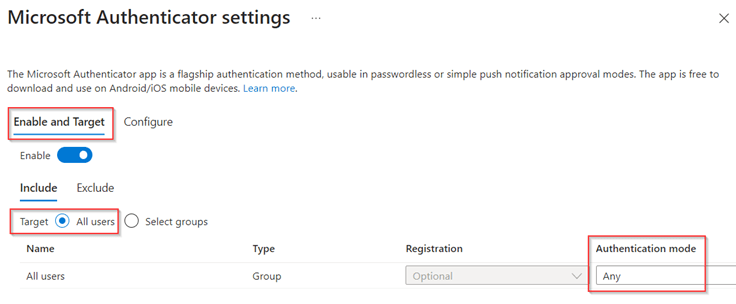
Once ready, go to the ‘Configure’ tab and scroll down to the ‘Microsoft Authenticator on companion applications’. For now, the status is ‘Microsoft-managed’ which is disabled, this will change from the 9th of June and will then be ‘Enabled’. So, let’s change the status to ‘Enabled’ for a specific group to test out the feature in your environment (as I’m working in a lab environment I’ve set it to ‘All users’).
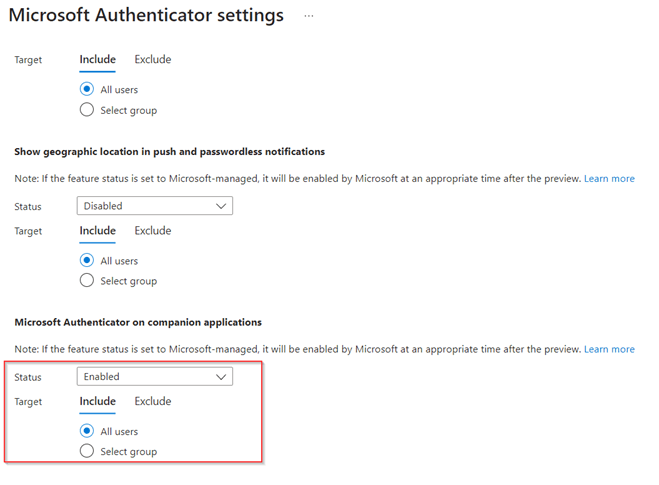
Once the configuration is in place, hit ‘Save’. Now once the configuration is done, let’s see what we just enabled for our end users and how that will look like!
Step 2 – What does the enrollment of the Authenticator Lite look like?
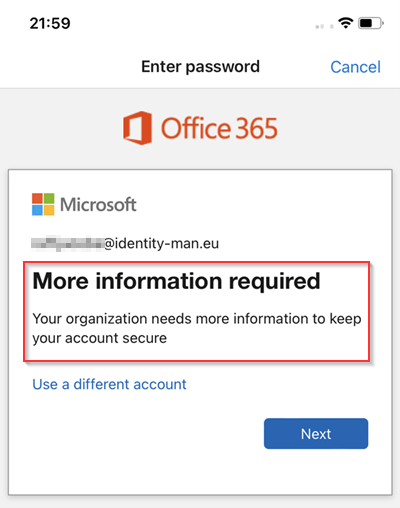
Once the configuration is in place, let’s look at the user behavior, for that we need to go to the Outlook App on iOS or Android. If you connect a new email account within the Outlook App the below message will appear (unfortunately today this is just informational and doesn’t guide your users through the steps).
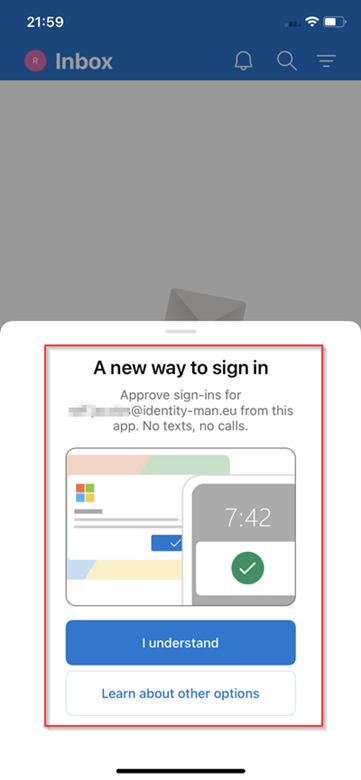
Once you’ve closed the message, go to the ‘Settings’ of the account Multi-Factor authentication, scroll down and hit ‘Authenticator’.

Next up, toggle the ‘Approve sign-ins’ switch.
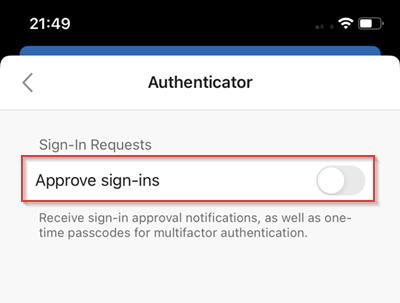
After that, you are required to perform Multi-Factor authentication for the registration of the Authenticator feature in the Outlook App (as mentioned within the limitations). So even though this account isn’t required to do Multi-Factor authentication and I haven’t configured any kind of Security Info Registration limitations I’m still required to perform Multi-Factor authentication or register if I haven’t done so already.
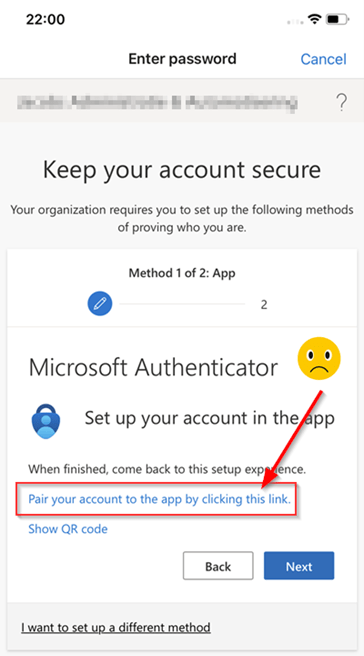
And although the registration would be doable when using the Authenticator App (the non-lite version) with the use of the URL ‘Pair your account to the app by clicking this link’, this link unfortunately won’t work with the Authenticator Lite version. In scenarios where you allow more methods (Voice or SMS) this could work but it’s far from user friendly so what to do?
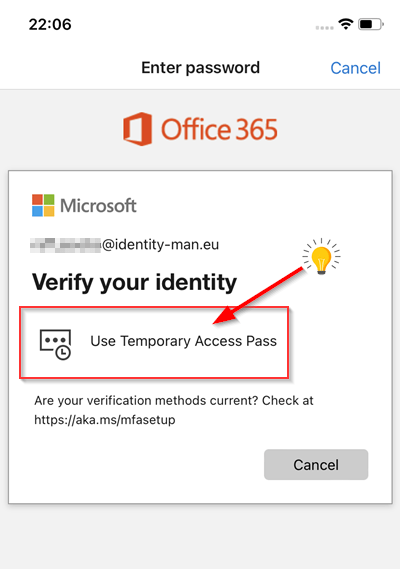
Well, let’s see if a Temporary Access Pass eases this process for end users, so we go back to the ‘Approve Sign-ins’ toggle while we (in the meantime) generated a Temporary Access Pass for this user.
We enter the Temporary Access Pass which we got for the user account.
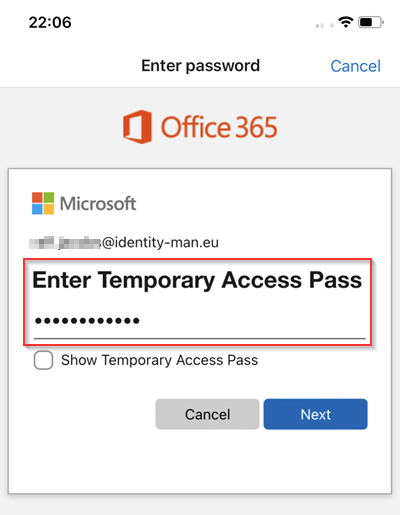
And YES! Once entered, we have enabled the ‘Authenticator Lite’ feature for ‘Push notifications’ and ‘One-time passcode’!
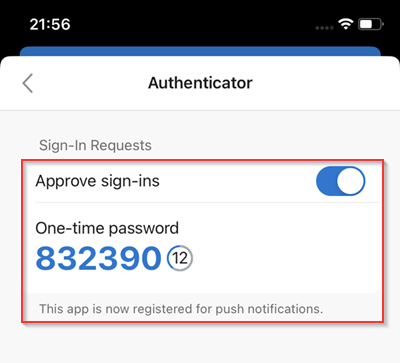
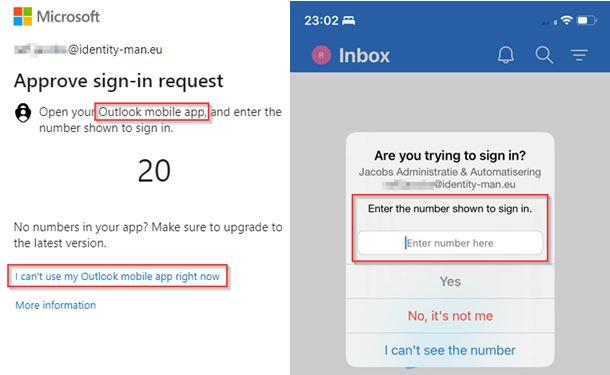
Now, if we sign-in via the web-browser when Multi-Factor Authentication is enabled for this account, we can see that we are prompted within the Outlook Mobile App for Multi-Factor Authentication. If the user rather uses the One-time passcode functionality the user can click ‘I can’t use my outlook mobile app right now’.
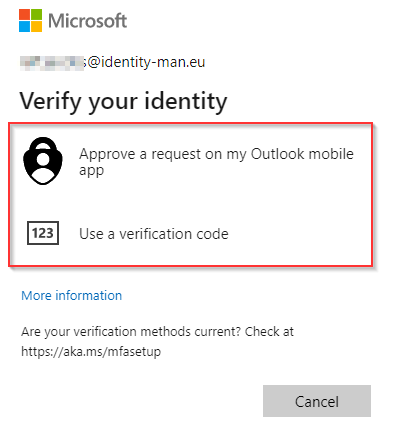
And from the different available methods, the user can choose for the ‘Use a verification code’ option and type over the One-time passcode from the ‘Authenticator Lite’ app or use a different method (if any) which is associated with their account.
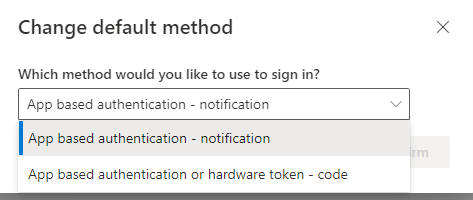
As everyone is used to the default method for Multi-Factor authentication can easily be changed by the end user themselves via the Security Info page.
And important as well, the administrator can see and manage the same information from the ‘Authentication Methods’ blade on the user account in the Entra Portal. Within this blade the administrator can also easily determine if the user used the Microsoft Authenticator App or the Authenticator Lite feature within Outlook App as you can see.

So now we know how to configure, enable & enroll the Authenticator Lite feature, let’s have a look at some different starting point scenarios which maybe are applicable to your end users. Hopefully that gives you the ability to make a good decision whether you need to leave this feature turned on for all users, a set of users or perhaps disable the feature.
Step 3 – The user experience from multiple perspectives
So, when we look at the user experience which we have when the ‘Authenticator Lite’ option is enabled we can conclude there are multiple scenarios. For that I’ve made the table below with the most common scenarios to get yourself prepared and make the correct decision for your environment.
| Scenario | Behaviour |
| Users without MFA configuring the Outlook App for the first time. | Users are prompted for this new capability after they configured their account but still manually need to go to settings to enable the feature. |
| Users with or without MFA using the Outlook App already & users with MFA configuring the Outlook App for the first time. | Users aren’t prompted for this new capability and need separate instructions to go to the ‘Authenticator’ setting option themselves in the Outlook Mobile App. |
| Users with Authenticator App already configured on the same device | The ‘Authenticator’ setting becomes greyed out and not usable on the same device. They can however use another device which they use to receive email and use the ‘Authenticator lite’ option on that device instead of the full blown authenticator app. |
| Users who are planning to use the full Microsoft Authenticator App instead of the Authenticator Lite option | There isn’t an ‘upgrade’ or ‘migrate’ button available, which indicates users have to re-register. This process is however less complex as the user can easily sign-in to the full-blown Authenticator app by clicking ‘Add work or school account’ and perform MFA for registration as they are already capable of doing MFA. After this registration the new Authenticator App is automatically the default. |
Now we know how to configure, enable & enroll the Authenticator Lite feature and we are aware of the scenarios which we can face within your organization let’s wrap up to the conclusion.
Conclusion
The ‘Authenticator Lite’ feature is amazing for organizations who are adopting the Outlook App, and just use the Authenticator App for Multi-Factor Authentication. So, if you are not using the Authenticator App as a broker app for your conditional access policies in which you ‘Require an approved client app’ or ‘Require an app protection policy’, I would suggest setting ‘Authenticator Lite’ toggle enabled and alter your end user instructions. Also, if you are not using or planning on using passwordless Phone Sign-In I would recommend enabling the ‘Authenticator Lite’ feature as soon as possible. This as it’s more user friendly, gives you perhaps the option to move away from insecure SMS and Voice methods as Multi-Factor Authentication and doesn’t require the use of another mobile app on end user devices. Most users already have their email configured on their mobile device and the Outlook App simply works best for your end users, there is even shared mailbox support in the Outlook App!
If you however are planning to, or using, Conditional Access policies with the ‘Require an approved client app’ or ‘Require an app protection policy’ as grant controls or are planning to or using passwordless Phone Sign-In I would recommend setting the ‘Authenticator Lite’ feature to ‘Disabled’. This as there isn’t a simple migration path and users simply need to re-enroll the Authenticator App for Multi-Factor Authentication.
So, review your starting point, check if you are bound to use the Authenticator App and if not, enable the feature for a test group, create instructions for your end users and either move to a more secure method by moving away from Voice/SMS or simplify things for your end users by enabling the Outlook App with the ‘Authenticator Lite’ feature! If you are bound to the Authenticator App, set the setting to ‘Disabled’ to prevent unwanted scenarios where users per accident enroll for Multi-Factor Authentication within the Outlook App and later need to re-enroll for the Microsoft Authenticator App.
I hope you again enjoyed reading my blog about this feature and stay tuned for some more new great features of the authenticator app (or ‘Authenticator Lite’ features) in the future!
Blogs in this series:
- Nudging your users to the Microsoft Authenticator App for MFA
- Improving the Authenticator App enrollment experience for your end users
- Using GPS Coordinates from the Authenticator app to approve or block access
- Improving the Microsoft Authenticator App Notifications
- Microsoft Authenticator Lite is here and it’s being enabled by default!


Hello,
I appreciate all the details given above, I have a question, does this feature work for Azure accounts that do not have a mailbox attached to them? (Mailbox license), in other words, can I use this feature to protect my azure account by using my personal email (in the email property of my azure account) in Outlook mobile?
LikeLike
Hi,
Great question, the account needs to be configured in the Outlook App, so the Authenticator Lite feature can only be enabled for users with a mailbox as you do enable the setting after connecting the account within the Outlook App. If the user doesn’t have a mailbox the user should use the full Authenticator App to complete MFA requests (or any other method).
Hope that helps.
LikeLike