For about 3 months the System preferred Multi-Factor Authentication option is available within Azure Active Directory, this to make sure end users are being prompted based on a pre-defined order of Multi-Factor Authentication methods. As you may know lots of end users probably have more than one Multi-Factor Authentication method configured but aren’t (always) using the most secure or convenient option to sign-in. With system-preferred end users will get the most secure / convenient second factor authentication method to sign-in, which is available as an authentication method beneath their account. With this Microsoft helps organizations to streamline the behaviour in which your end users are getting prompted for Multi-Factor Authentication, improve the sign-in security when it comes to Multi-Factor Authentication and improve the user experience (in most cases) for end users.

As the name already suggests it’s a ‘System preferred’ defined list of Multi-Factor Authentication methods, which means you can’t make alterations to the order of this list. Although the list is subject to change, due to new methods being added every now and then, I’ve summarized the order of this list below on how this is handled today:
- Temporary Access Pass (Single & Multi-Use)
- Certificate-based authentication
- FIDO2 security key
- Microsoft Authenticator Push notification
- Companion app notification
- Microsoft Authenticator time-based one-time password (TOTP)
- Companion app TOTP
- Hardware token based TOTP
- Software token based TOTP
- SMS over mobile
- OnewayVoiceMobileOTP
- OnewayVoiceAlternateMobileOTP
- OnewayVoiceOfficeOTP
- TwowayVoiceMobile
- TwowayVoiceAlternateMobile
- TwowayVoiceOffice
- TwowaySMSOverMobile
A very important note to this is that this list is ONLY applies today for second factor authentication! This means that if you are on a passwordless journey and sign-in with your username and Phone Sign-in or FIDO2 key the order is not subject to system preferred and therefore not impacted. This can be very helpful in scenarios where you want to use Phone Sign-in instead sign-in with FIDO2 but got your FIDO2 key registered as a ‘fallback’ method in case Phone Sign-in isn’t available.
Now we know what ‘System preferred’ Multi-Factor Authentication is and why it’s important for you, let’s have a look at some of the limitations which are available today:
- System-preferred Multi-Factor Authentication doesn’t affect users who sign in by using federation, such as Active Directory Federation Services (AD FS) or are using the Network Policy Server (NPS) extension. This implies that these users don’t see any change to their sign-in experience when using one of the above adapters or extensions.
- Using FIDO2 security keys on android or iOS devices or registering for certificate-based authentication (CBA) today isn’t supported with system-preferred Multi-Factor Authentication enabled. Until this known issue is fixed Microsoft recommends not using FIDO2 security keys on mobile devices or registering for certificate-based authentication. Best is to use an exclusion group for these users to exclude them from system preferred Multi-Factor Authentication until a solid fix is available.
Now we know the limitations as well of System-Preferred you may think why turn this feature on, it’s disabled (Microsoft-Managed) and don’t fix anything which isn’t broken. Well, that’s true however Microsoft will start turning this feature on by default for all tenants from the 7th of July, with an option to opt-out. With that you rather want to be prepared for what’s coming in your environment and make sure the configuration is already in place and you’ve prepared your end users for this change.
With that said, let’s have a look on what we can configure for ‘System Preferred Multi-Factor Authentication’.
Step 1 – Configure ‘System preferred’ MFA in the Entra admin portal.
So first let’s check the configuration of the ‘Settings’ Authentication methods in the Entra portal by going to ‘Protect & Secure’ and hit ‘Authentication Methods’, in here hit ‘Settings’.

Within the ‘System-preferred multifactor authentication’ section, make sure that the ‘State’ is set to ‘Enabled’ and include a specific group you want to test with, or select ‘All users’.

Eventually if you want to (and for example selected ‘all users’ within the include section’) you can also exclude users by selecting a particular group.

Once done make sure to hit ‘Save’. The configuration is now applied to the included users, so let’s have a look how you can see what kind of method is now triggered from an admin perspective.
Step 2 – How can I see this is being applied to end users from an admin perspective?
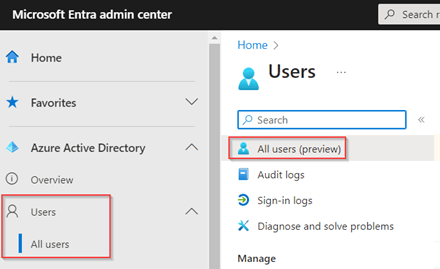
So, to check what’s applied to an end user let’s go to the Entra portal, click on ‘Users’ and hit ‘All Users’ and search for the actual user.
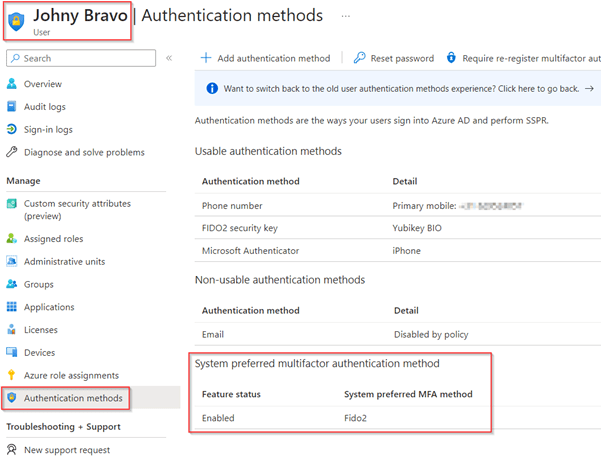
Once you’ve opened the user, in my example Johny Bravo, go to the ‘Authentication Methods’ blade and as you can see under the ‘System preferred multifactor authentication method’ section you see that the ‘feature status’ went to ‘Enabled’ and ‘FIDO2’ is the system preferred MFA method.
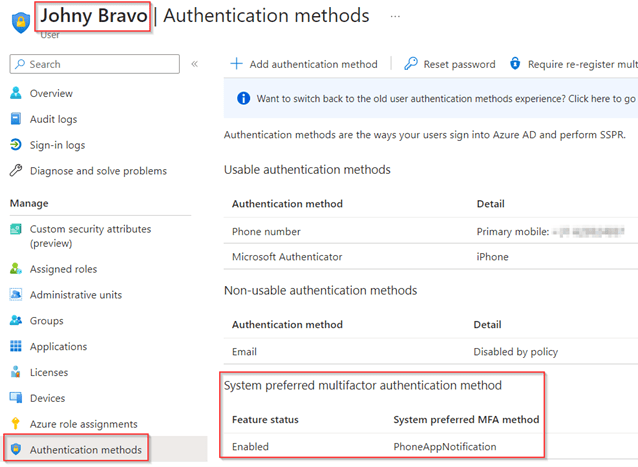
Now let’s see what happens once we remove the current system preferred MFA method, FIDO2 in this example. As you can see system preferred takes immediate action and switches the ‘System preferred MFA method’ from FIDO2 to ‘PhoneAppNotification’.
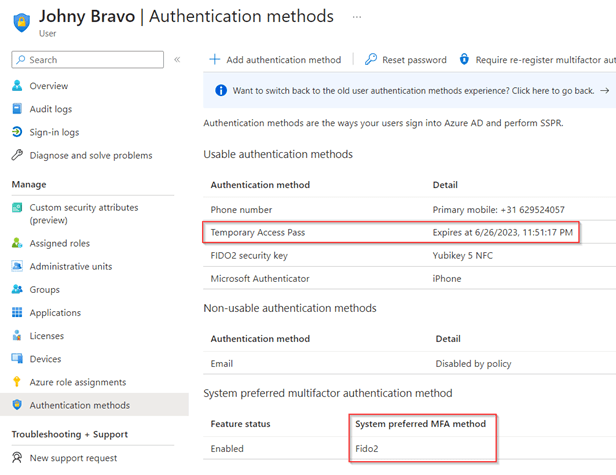
Now we have seen the system preferred MFA method automatically switches, let’s see what happens if we would add a ‘Temporary Access Pass’. Funny enough, even though the Temporary Access Pass is valid, it’s not set as the system preferred MFA method from the admin overview as you can see. From what I was able to test it looks like a bug as this is only the case when using a Temporary Access Pass & after my report the product team is currently looking into this matter.
So now we know how this looks like from an admin perspective, let’s see what the user experience looks like.
Step 3 – The user experience with system preferred MFA
So, when we look at the user experience which we have when ‘System preferred MFA’ is enabled for an end user, let’s type in the username and password.

Once you’ve entered the correct username and password you’re triggered with the system preferred method, in my example FIDO2. Of course, users are still able to click ‘Other ways to sign-in’ to pick a different method.

Once we signed-in successfully, let’s go to ‘Security Info’ beneath the account we just signed-in with. In here we can see that ‘I’m using the most advisable sign-in method where it applies’. This simply means system preferred was triggered. I can also see that if system preferred is unavailable it would have triggered the Microsoft Authenticator Push notification.

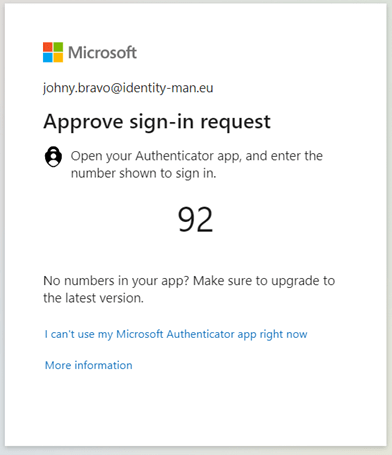
As you’ve seen in step 2, I did delete the FIDO2 method as an administrator and signed-out and signed-in I’m prompted with the next system preferred method in line which is the Microsoft Authenticator App Notification as you can see below.
And at last, we’ve seen that I’ve generated a Temporary Access Pass and we noted as well that it wasn’t set as the preferred MFA method on the ‘Authentication methods’ blade of the user. However, when we look at the behaviour, I’m prompted to use my ‘Temporary Access Pass’ so although the ‘Authentication Methods’ blade isn’t showing me that the user account will be prompted to use a ‘Temporary Access Pass’, it does prompt me for it, which is also the expected behaviour.

Now we know how to configure system preferred MFA and have checked the administrator experience and user experience let’s wrap up to the conclusion.
Conclusion
The ‘System preferred’ feature is amazing for all organizations who are using Multi-Factor Authentication today. Assuming you have enabled MFA, I would highly suggest enabling the system preferred feature for a pilot group in your environment. This as Microsoft will turn ‘system preferred’ on by default from the 7th of July with an option to opt-out. Only if you’re using certificate-based authentication or FIDO2 Security Keys on mobile devices for second factor authentication I wouldn’t suggest turning system preferred MFA on until this known issue is fixed.
Once your pilot was successful set the policy to ‘All users’ and provide an opt-out (excluded group) for scenarios where system-preferred brings in issues. This will make sure that everyone in your organization is using the most secure / convenient second factor authentication method except for the users you’ve excluded. As mentioned at the start of this blog system preferred won’t impact your passwordless journey as it’s specifically impacting second factor authentication, which is triggered after you’ve entered your username and password.
If you however are not happy with the behavior of system preferred MFA, you can set the feature to ‘disabled’ but be aware that a chance is there that Microsoft will force system preferred to be enabled without an opt-out in the future. So, I would encourage you to embrace this feature and implement it within your environment, rather sooner than later.
I hope you again enjoyed reading my blog about this feature and stay tuned for some more new great features of the authenticator app (or ‘authentication’ features) in the future!
Blogs in this series:
- Nudging your users to the Microsoft Authenticator App for MFA
- Improving the Authenticator App enrollment experience for your end users
- Using GPS Coordinates from the Authenticator app to approve or block access
- Improving the Microsoft Authenticator App Notifications
- Microsoft Authenticator Lite is here and it’s being enabled by default!
- System Preferred MFA is here, and it’s being enabled by default!
 Identity Man