A warm welcome to my next blog in the Identity Governance series, which is the second part in how to manage admin accounts in your tenant with Entra ID Governance (which unfortunately took a while due to private and personal circumstances). Every organization is using admin accounts, this as you should drastically avoid using your regular office account for admin purposes for many security reasons. This also means that every organization must deal with access and lifecycle management around these admin accounts and for most organizations this is a massive struggle.
I see admin accounts not being deactivated together with the user account, permissions set on admin accounts not being reviewed or removed and accounts not being cleaned up once the admin has left the organization. That’s why it’s time for some change and see how we can streamline this process into Entra ID Governance.
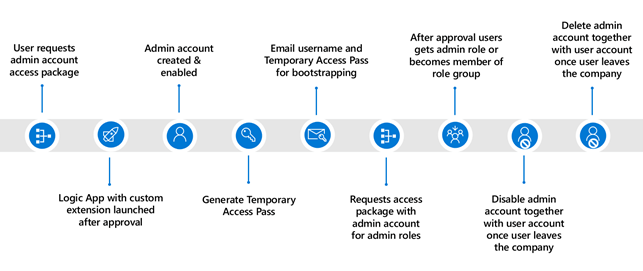
To manage the identity and access lifecycle of admin accounts, I’m going to use different features within Entra ID Governance which I’ve therefore split up in multiple blogs:
- In the first blog we looked at the creation of admin accounts using access packages – In which we used a custom extension attached to an access package which will create an admin account for us and linked it to the user account. This is the start of the identity lifecycle process for admin accounts.
- In this second blog we will look at disabling and deleting the admin accounts by using lifecycle workflows – In which I will show you how to offboard admin accounts together with user accounts once the user leaves the company. This concludes the entire identity lifecycle management process for admin accounts.
- In the third blog we will look at three ways to implement privileged identity management for your administrators – In which I will show you how you can apply roles individually, based on role assignable groups or based on PIM for groups and make sure permissions are reviewed occasionally.
- In the last blog, we will look at how to enrich your privileged identity management deployment by using access packages – In which I will show you how you can configure access packages to let admins request single admin roles or access to role assignable groups themselves to execute their tasks based on least privilege and a fully automated process.
As this is the second part of this blog series, time to dive in and build the desired workflows to disable and delete admin accounts by using lifecycle workflows in Entra ID Governance.
Disable and delete admin accounts by using lifecycle workflows
Step 1 – Creating the custom extensions
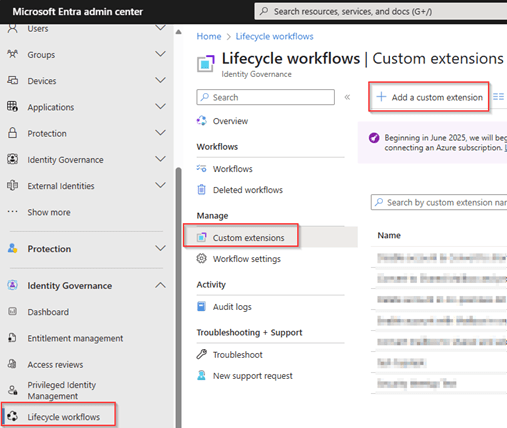
To be able to disable and delete admin accounts associated to the end user account we need to use custom extensions in Entra Lifecycle Workflows. For this go to the Entra Admin portal, go to Lifecycle Workflows, select Custom Extensions and hit ‘+ Add a custom extension’.
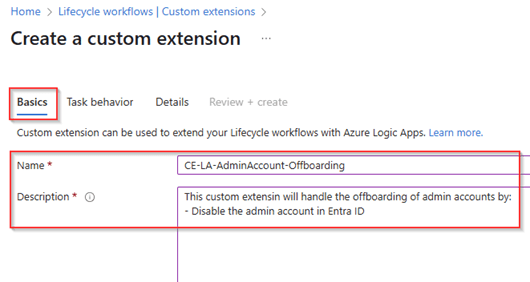
Fill in the ‘Basics’ information for the custom extension, in this case a name and description. For me it’s helpful to reuse the name of the custom extension within the name of the Logic App so I know they belong to each other. The custom extension created in the next few steps will disable the admin accounts during the offboarding process.
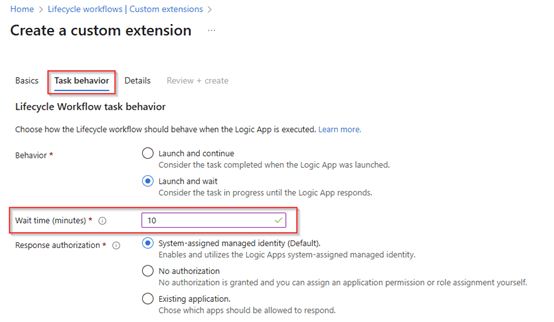
In the task behavior select ‘Launch and wait’ and let’s make sure that the workflow waits ‘10 minutes’ for a callback from the logic app. Doing this will prevent a ‘fire and forget’ process. In this example only the logic apps system-assigned managed identity is allowed to execute this callback which is the preferred method.
Now it’s time to create the ‘Logic App’ which is attached to this custom extension. As the structure of the logic app works with a trigger and a callback I always suggest to create these Logic Apps via the custom extensions. Therefore, select the subscription, resource group and provide the Logic App a name (in this example you can see that the logic app has a name which can be associated to the custom extension). Once ready hit ‘Create logic app’.
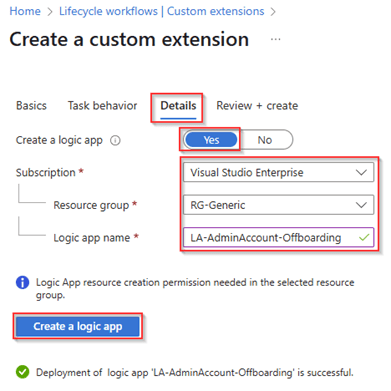
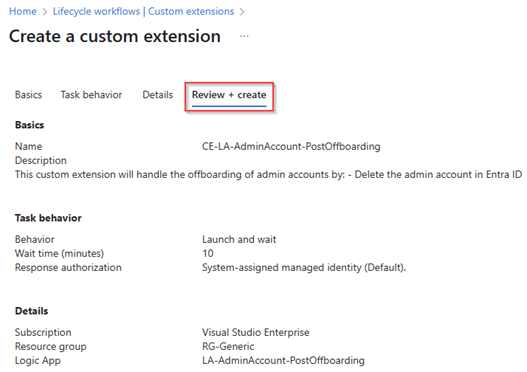
Once the logic app has been created it’s time to review all the settings for the Custom Extension and once all is verified hit ‘Create’.

As the above custom extension will only disable the admin accounts, we need a separate custom extension and logic app to delete the admin account. For that we have created a separate custom extension called ‘Post Offboarding‘ which will execute the deletion of the admin account.
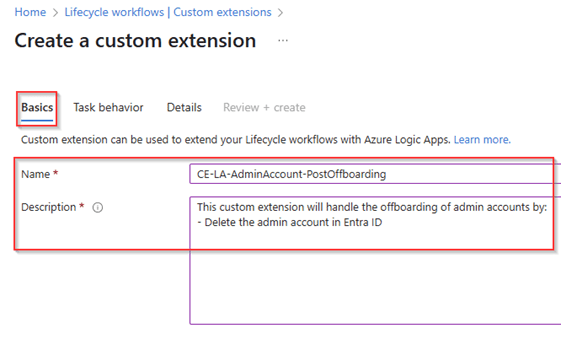
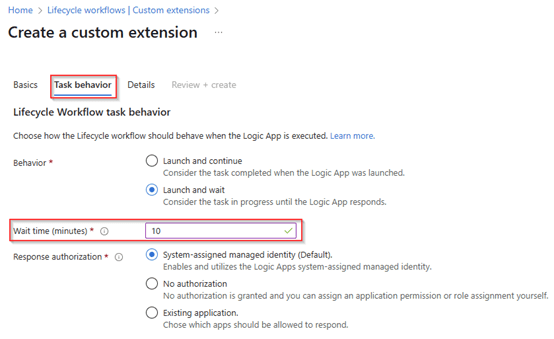
Also, here within the task behavior we select to ‘launch and wait’ and have configured it to ‘10 minutes’ for the Logic App to provide a response back to Entra Lifecycle Workflows.
Within the details screen we create a separate Logic App with the name ‘LA-AdminAccount-PostOffboarding’ for Post Offboarding activities which is associated to this custom extension. Once ready again hit ‘Create a logic app’.
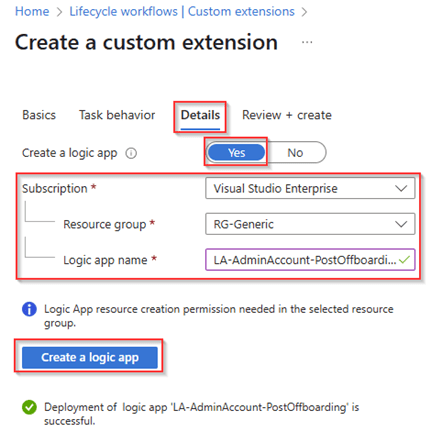
Once the logic app is created, please review the custom extension which will be created, and once ready hit ‘Create’.
We now created two custom extension and two logic apps which we can use to execute some additional magic to offboard the admin account together with the user account of the same user.
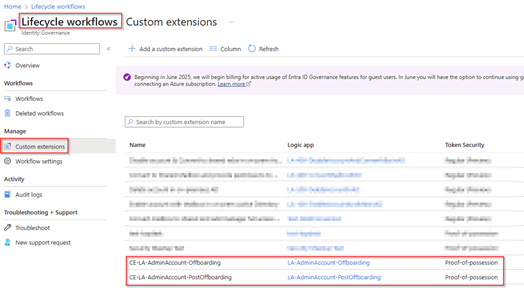
Before we can use these custom extension and logic apps we however need to add some additional configuration and permissions for them to work correctly, so let’s dive in!
Step 2 – Configuring the Logic Apps used for Custom Extensions
The first step is to provide the system-assigned managed identities attached to the logic apps the right permissions. The table below illustrates the bare minimum permissions required:
| Managed identity | Graph Permission | Entra Admin Role | Script |
| LA-AdminAccount-Offboarding | User.EnableDisableAccount.All | Privileged Authentication Administrator | Graph Permission script Offboarding GitHub |
| LA-AdminAccount-PostOffboarding | User.ReadWrite.All | Privileged Authentication Administrator | Graph Permission Script Post Offboarding GitHub |
The result of the Graph Permission script for offboarding should look like the illustration below.
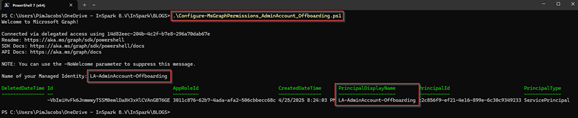
When successful, the Graph permissions will be visible as well in Microsoft Entra.
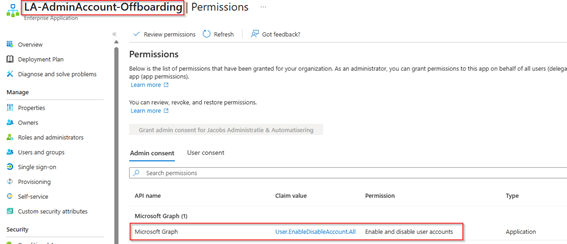
The same result should be provided with the Post Offboarding permission script.
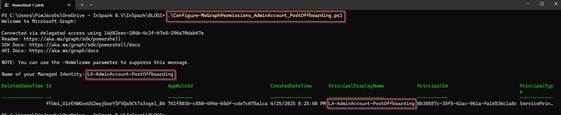
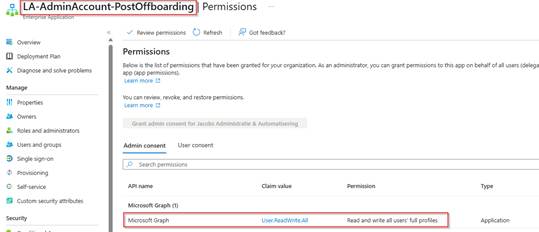
After running the permission script you can see the permissions have again been applied correctly as well in Microsoft Entra.
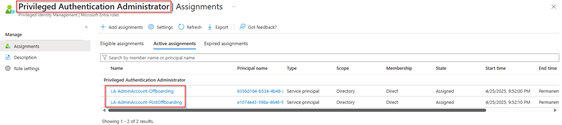
The last step is to add the ‘Privileged Authentication Administrator’ role to the system-assigned managed identities. This permission needs to be an active assignment which doesn’t expire and provides permissions to disable and delete privileged accounts (like global administrators) together with the desired graph permission (as these go hand in hand).
Now the permissions have been given it’s time to configure the Logic Apps. As I’ve already fully configured these logic apps and want to prevent a long step-by-step walk through I’ve provided the JSON code on my GitHub which can easily be re-used.
| Logic App Name | Link to JSON Code |
| LA-AdminAccount-Offboarding | JSON Code on GitHub |
| LA-AdminAccount-PostOffboarding | JSON Code on GitHub |
To copy over the JSON code, go to the Azure Portal, search for ‘Logic Apps’, select the ‘Logic App’, hit ‘Edit’ and select ‘Code View’. In here you can paste the entire JSON code from the GitHub into the Logic Apps. Once ready don’t forget to hit ‘Save’.
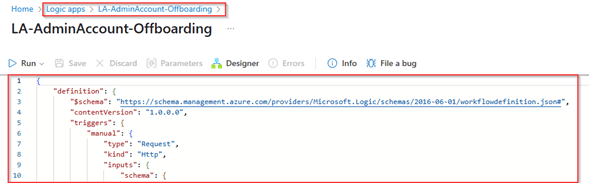
For the ‘LA-AdminAccount-Offboarding’ this should result in the below steps, which as you can see disable the admin account based on the following actions:
- Get account details from MS Graph – Grabs additional details from the user not received within the trigger from Lifecycle Workflows.
- Parse JSON – To verify if all information is retrieved correctly.
- Get Admin details from MS Graph – Retrieve additional users with the same EmployeeID and therefore belong to the end user account.
- Parse JSON – To verify if all information is retrieved correctly.
- For each result – Disable the account.
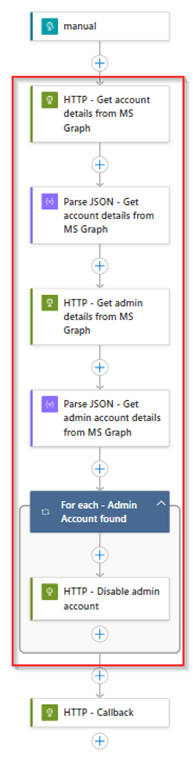
For the ‘LA-AdminAccount-PostOffboarding’ this should result in the below steps, which as you can see delete the admin account based on the following actions:
- Get account details from MS Graph – Grabs additional details from the user not received within the trigger from Lifecycle Workflows.
- Parse JSON – To verify if all information is retrieved correctly.
- Get Admin details from MS Graph – Retrieve additional users with the same EmployeeID and therefore belong to the end user account.
- Parse JSON – To verify if all information is retrieved correctly.
- For each result – Delete the account.
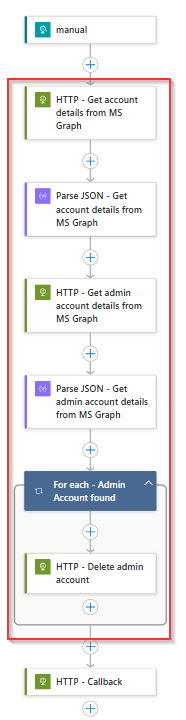
With that we come to an end configuring the Logic Apps and Custom Extensions. Both are now usable within Lifecycle Workflows so let’s continue to the configuration of the lifecycle workflows.
Step 3 – Configuring the lifecycle workflows
Now the custom extension and logic apps have been fully configured we can add them to actual workflows within Lifecyle Workflows. For this go to the Entra Admin portal, go to Lifecycle Workflows, hit Workflows and select the ‘Offboard an employee flow’ in this case this flow was already available and also contains the step to disable the regular user account of the user.
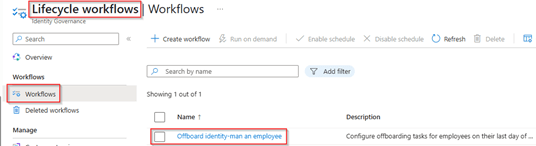
Within the tasks, hit ‘+ Add Task’, select ‘Run a custom extension’, hit ‘Add’. Now select the added task and provide the task a ‘friendly name’, ‘Description’ and select the created custom extension for offboarding, in this example ‘CE-LA-AdminAccount-Offboarding’. Once ready hit ‘Save’.
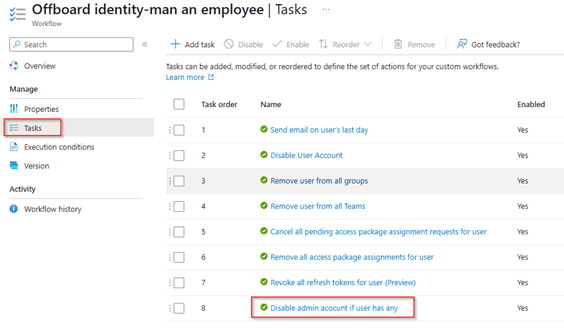
Now the offboarding workflow has been re-configured, let’s do the same for post-offboarding. Again, go to the workflows blade beneath ‘Lifecycle Workflows’ and edit the ‘Post-offboarding’ workflow (which in my case already existed).
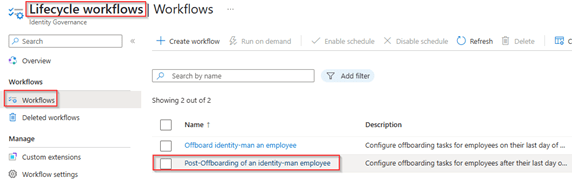
In here again add the ‘Run a custom extension’ task, provide the task a friendly name and description and select the custom extension ‘CE-LA-AdminAccount-PostOffboarding’. Once ready hit ‘Save’.
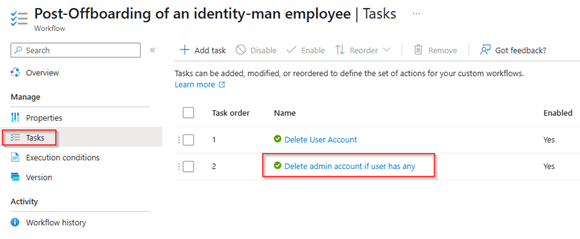
NOTE: Please make sure to first run the Custom Extension, before deleting the actual user account as otherwise MS Graph API Calls may fail due to a missing ObjectID (as the user account is already deleted in the first task within the lifecycle workflow.
At this point the admin accounts will automatically be disabled (offboarded) and deleted (post offboarded) together with the end user accounts. So, let’s test the behavior of the created lifecycle workflows.
Step 4 – Testing the lifecycle workflows
To test the whole setup (which assumes the admin account has been created according to Part 1 of this blog series), we are going to run the lifecycle workflows ‘on demand’ as we don’t want to wait for the interval for testing purposes. Therefore, go to the Entra Admin portal and open the ‘Offboard workflow’ and hit ‘Run on demand’. In here select the regular user account which should be offboarded and has an admin account created via an access package as described in Part 1 of this blog series. In my example I’m using the account of Johnny Bravo and once ready I hit ‘Run workflow’.
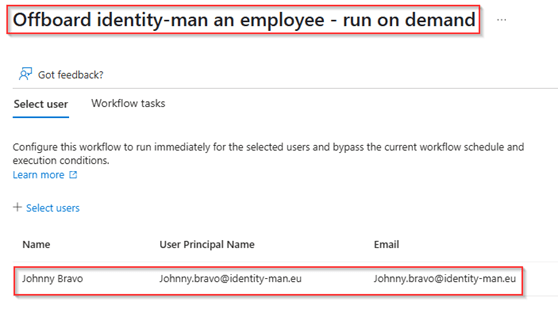
With this ‘Run on demand’ flow the regular user account of the user will be disabled and the admin account as well. This can also be found within the audit logs of both accounts, in here you can see that the regular user account is being disabled by Lifecycle Workflows.

While the admin account of the user is being disabled by the system-assigned managed identity of the Logic App.

Now the users are disabled, let’s also test the Post-Offboarding with a ‘Run on demand’ flow. This flow will delete both the user account and admin account of the user account. Once the user is selected hit ‘Run Workflow’.
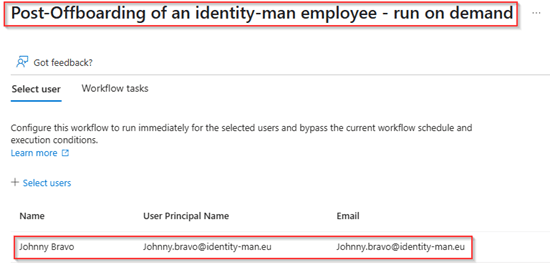
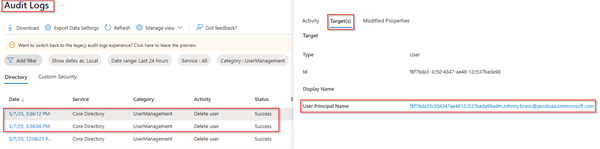
In the audit logs of Microsoft Entra, we can see that both users are being deleted (with a soft delete).
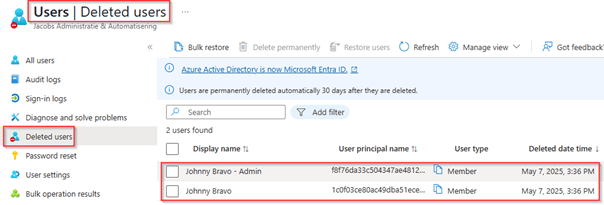
As they are soft deleted, they can still be found in the recycle bin of Microsoft Entra and eventually when needed be restored from here.
With Part 1 of this blog series and this part we secured the identity lifecycle of admin accounts by using features within Entra ID Governance. Having said that let’s move to a conclusion.
Conclusion
Now we’ve walked through the above four steps, you now know how to create the custom extensions required within lifecycle workflows used for admin offboarding, you know how to configure and prepare the custom extension and logic apps and know how to add those into the (already existing) lifecycle workflows. With that you’re able to streamline the admin account lifecycle process based on a standard and automated process in your organization which is attached to the lifecycle of your regular user account.
With this solution we can conclude that we could do the same for test accounts (even with the same custom extensions) in your environment or even functional or service accounts if wanted or required. Which is also exactly the beauty of using custom extensions, sky is literally the limit.
With that being said, I hope you enjoyed reading this new blog within the Azure AD Identity Governance series! Stay tuned for the next two blog in this series, which will be all about the access lifecycle process of admin accounts which are being built on top of the above identity lifecycle process. This whereby we will take a closer look in how you can configure Entra Privileged Identity Management, for admin accounts created via the above process (especially as there are more ways which lead to Rome when using Privileged Identity Management 😉).
- An Introduction to Azure AD Identity Governance
- Identity Governance 1 of 10: Implementing a Strong Identity Foundation
- Identity Governance 2 of 10: Implementing Identity Lifecycle management for guest users – part 1
- Identity Governance 2 of 10: Implementing Identity Lifecycle management for guest users – part 2
- Identity Governance 2 of 10: Implementing Identity Lifecycle management for guest users – part 3
- Identity Governance 3 of 10: Configuring Provisioning in 3rd party apps for (guest) users
- Identity Governance 4 of 10: Implementing Lifecycle Workflows – Configure the basics
- Identity Governance 4 of 10: Implementing Lifecycle Workflows – Configure onboarding workflows
- Identity Governance 4 of 10: Implementing Lifecycle Workflows – Configure offboarding workflows
- Identity Governance 5 of 10: Using the hidden gems in Azure AD access packages, all you need to know! – Part 1
- Identity Governance 5 of 10: Using the hidden gems in Azure AD access packages, all you need to know! – Part 2
- Identity Governance 5 of 10: Using the hidden gems in Azure AD access packages, all you need to know! – Part 3
- Identity Governance 5 of 10: Using the hidden gems in Azure AD access packages, all you need to know! – Part 4
- Identity Governance 6 of 10: Using the brand new Entra Inbound Provisioning API for Identity Lifecycle Management!
- Identity Governance 7 of 10: Recertify access by using Microsoft Entra Access Reviews! – Part 1
- Identity Governance 7 of 10: Recertify access by using Microsoft Entra Access Reviews! – Part 2
- Identity Governance 8 of 10: How to manage admin accounts with Entra ID Governance – Part 1
- Identity Governance 8 of 10: How to disable and delete admin accounts with Entra ID Governance – Part 2
- Identity Governance 8 of 10: How to implement Privileged Identity Management for your admin accounts – Part 3
- Identity Governance 8 of 10: How to enrich Privileged Identity Management with access packages – Part 4
- Identity Governance 9 of 10: Implementing a Terms of use
- Identity Governance 10 of 10: Review by Monitoring and reporting
 Identity Man